Nintendo 3Ds
Cinema4D Illustrator Photoshop
3d-Modeling Optimized Topology
-
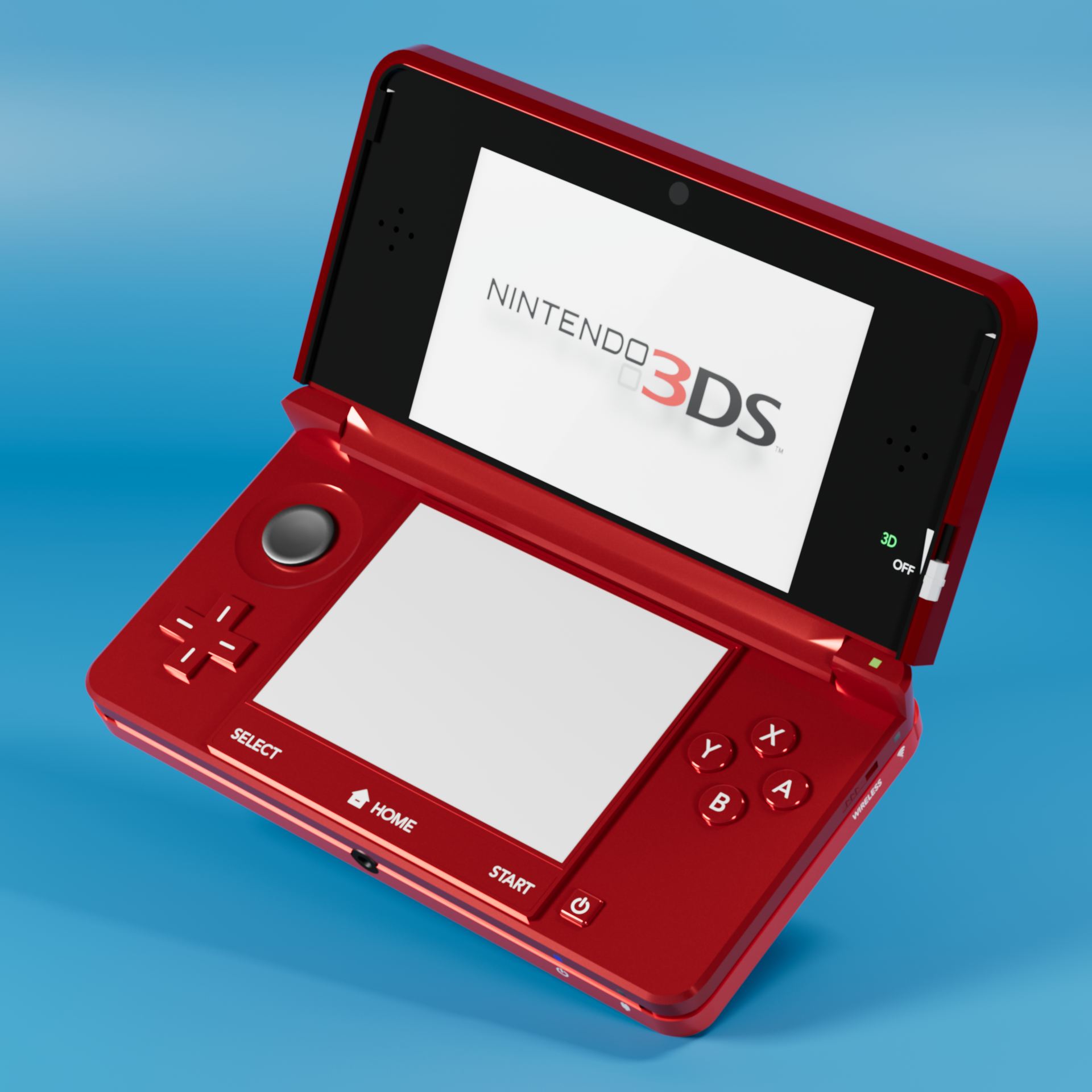
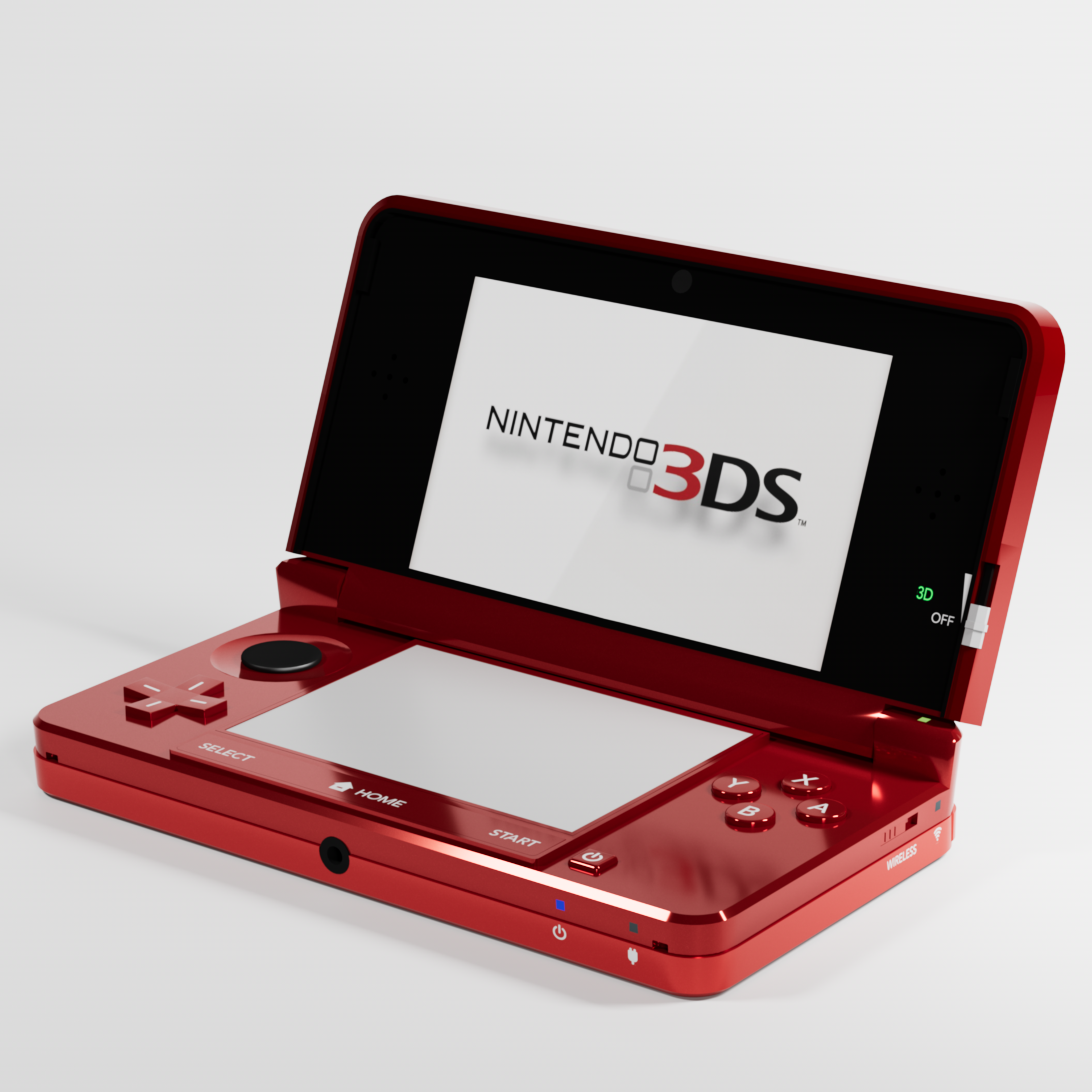
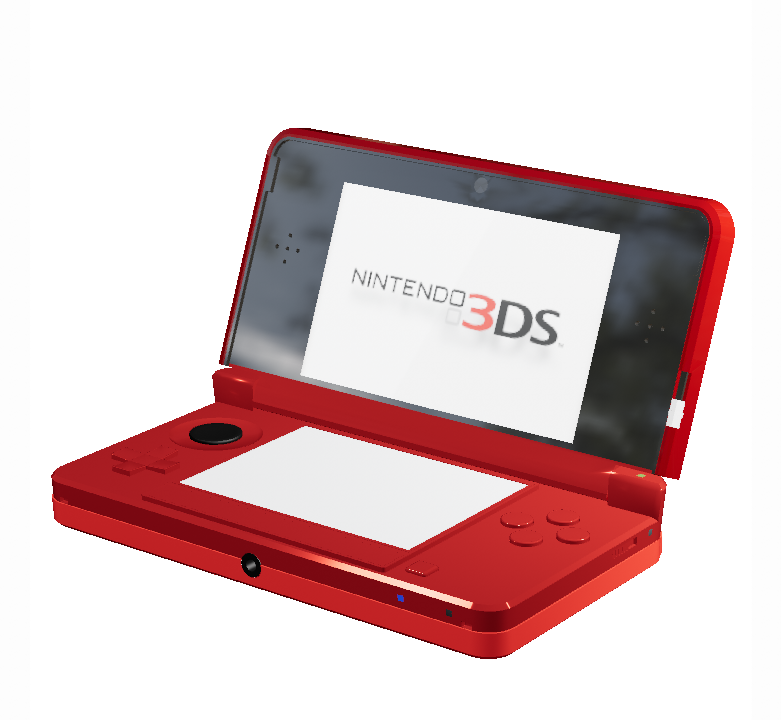
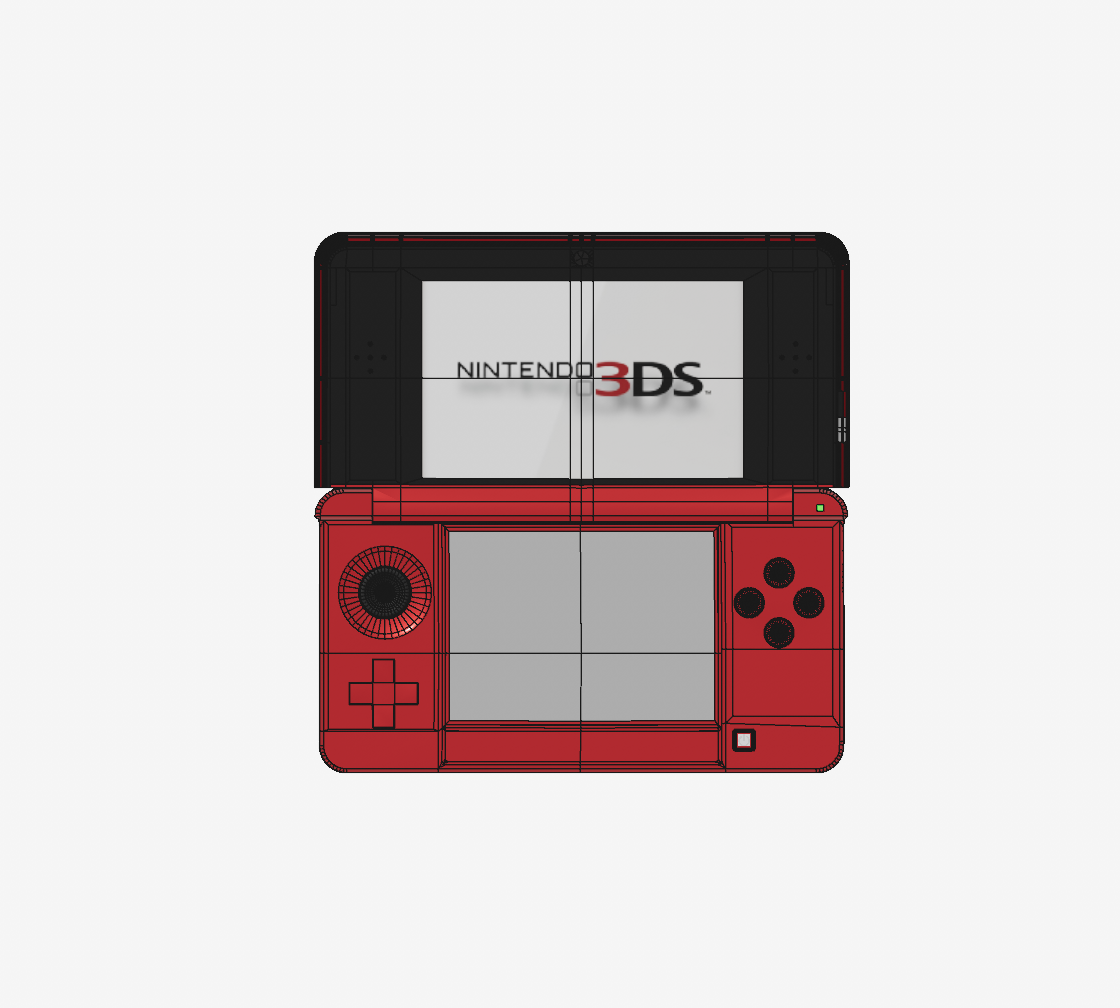
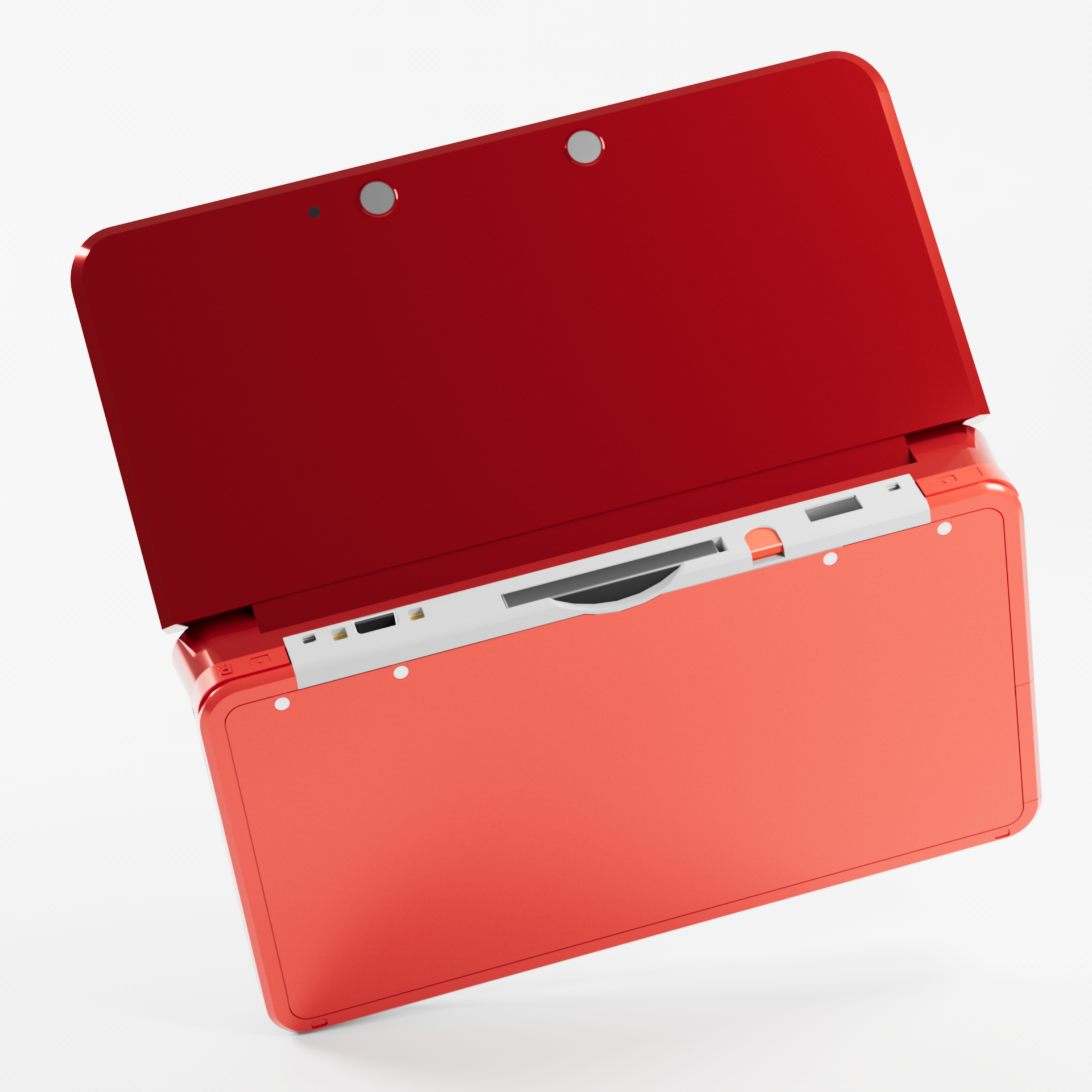
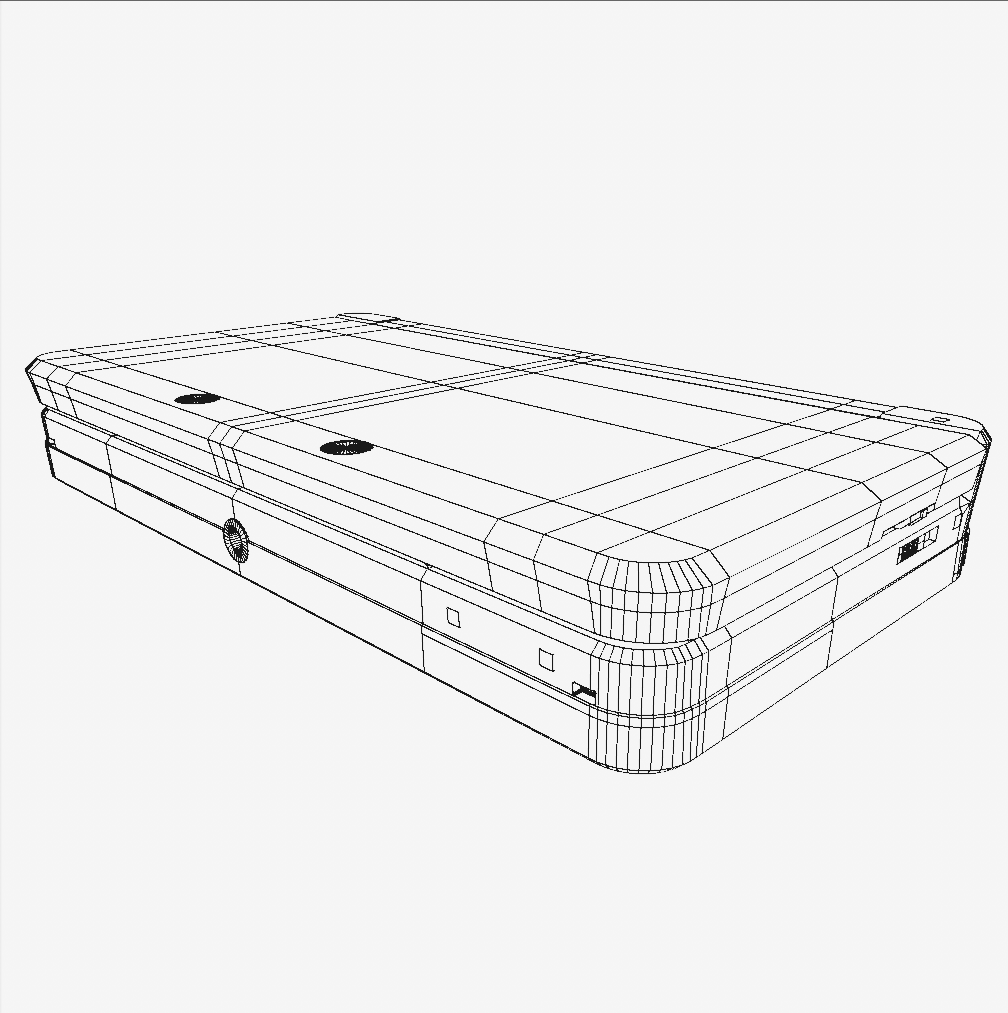
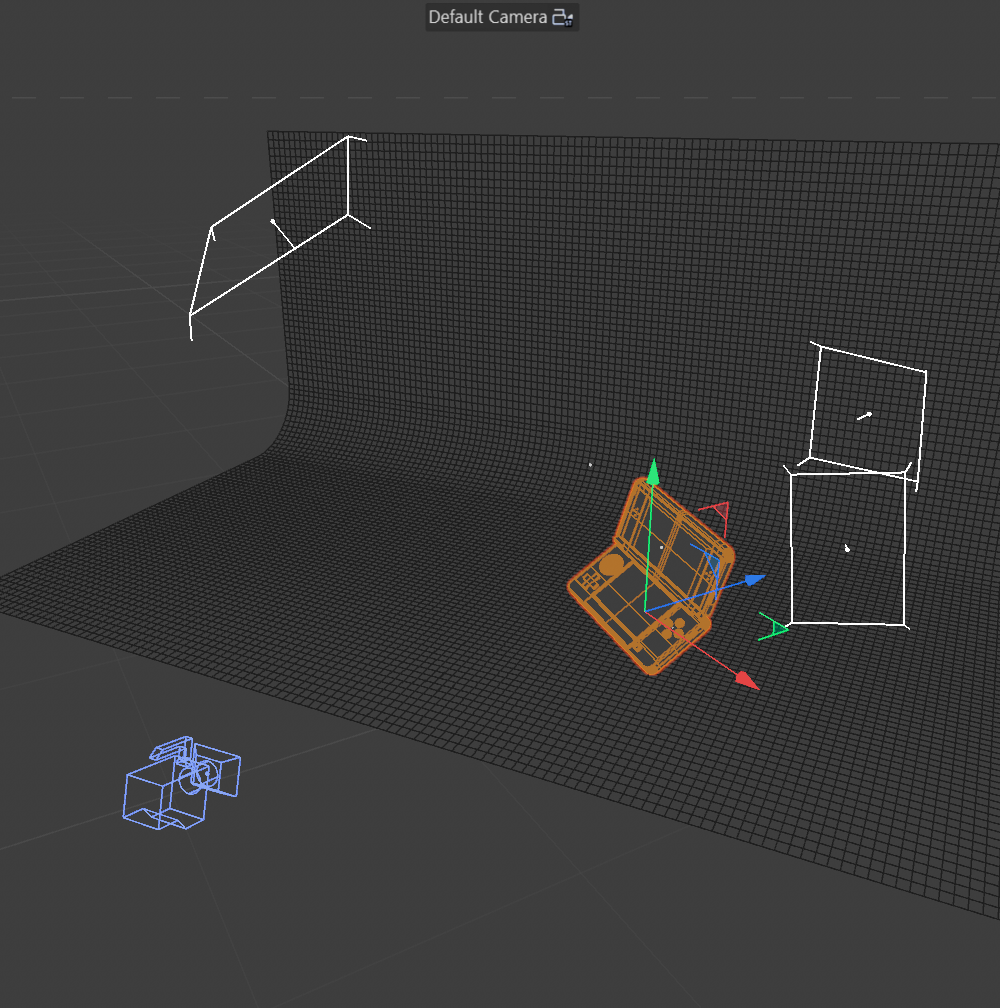
This is a 3d model and render I made in Cinema 4D using Redshift Renderer. The product pictured is the Nintendo 3Ds. I am not affiliated with Nintendo in any way. I picked this product to study and model on my own because it has a lot of intricate detail and varying textures.
-
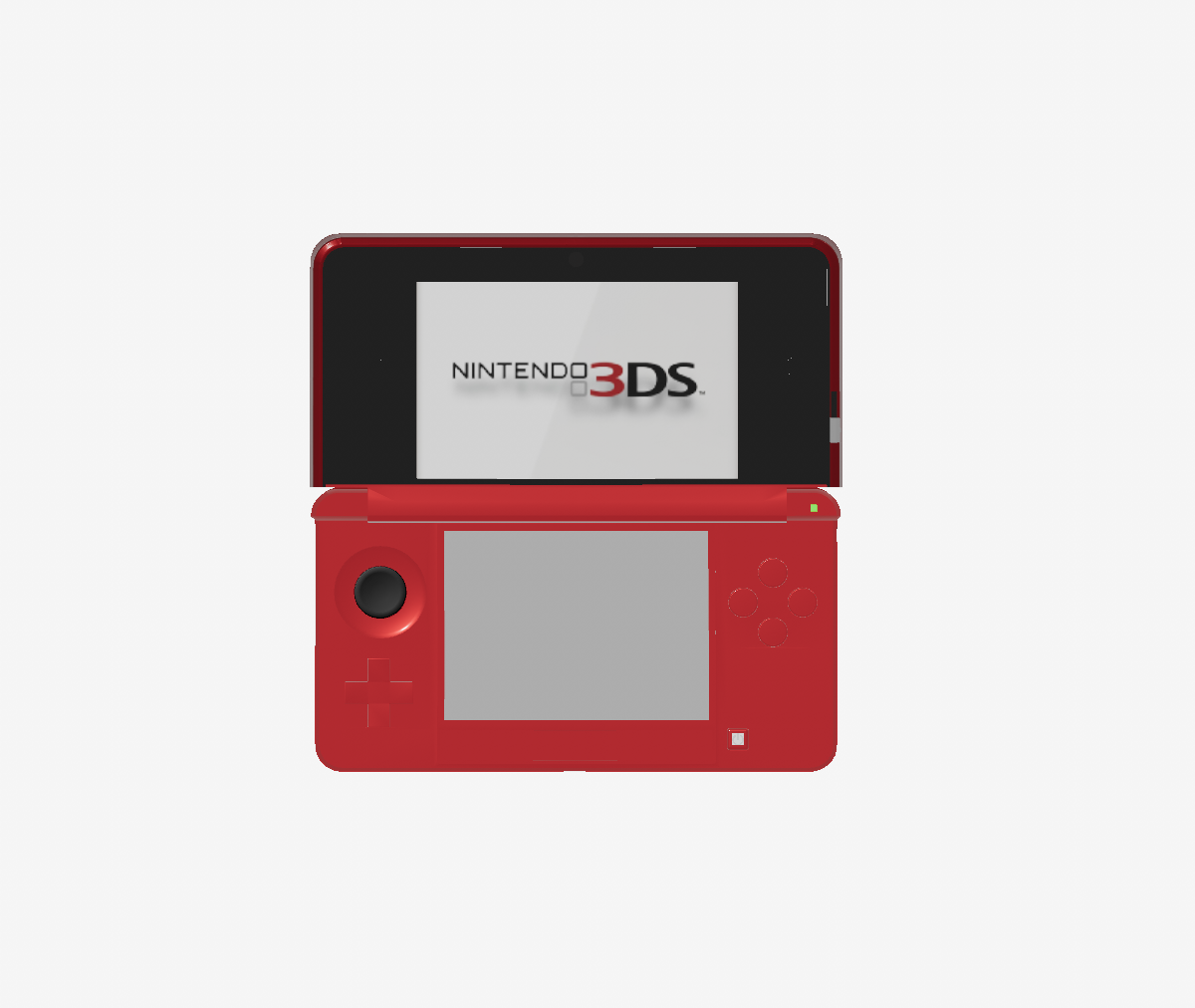
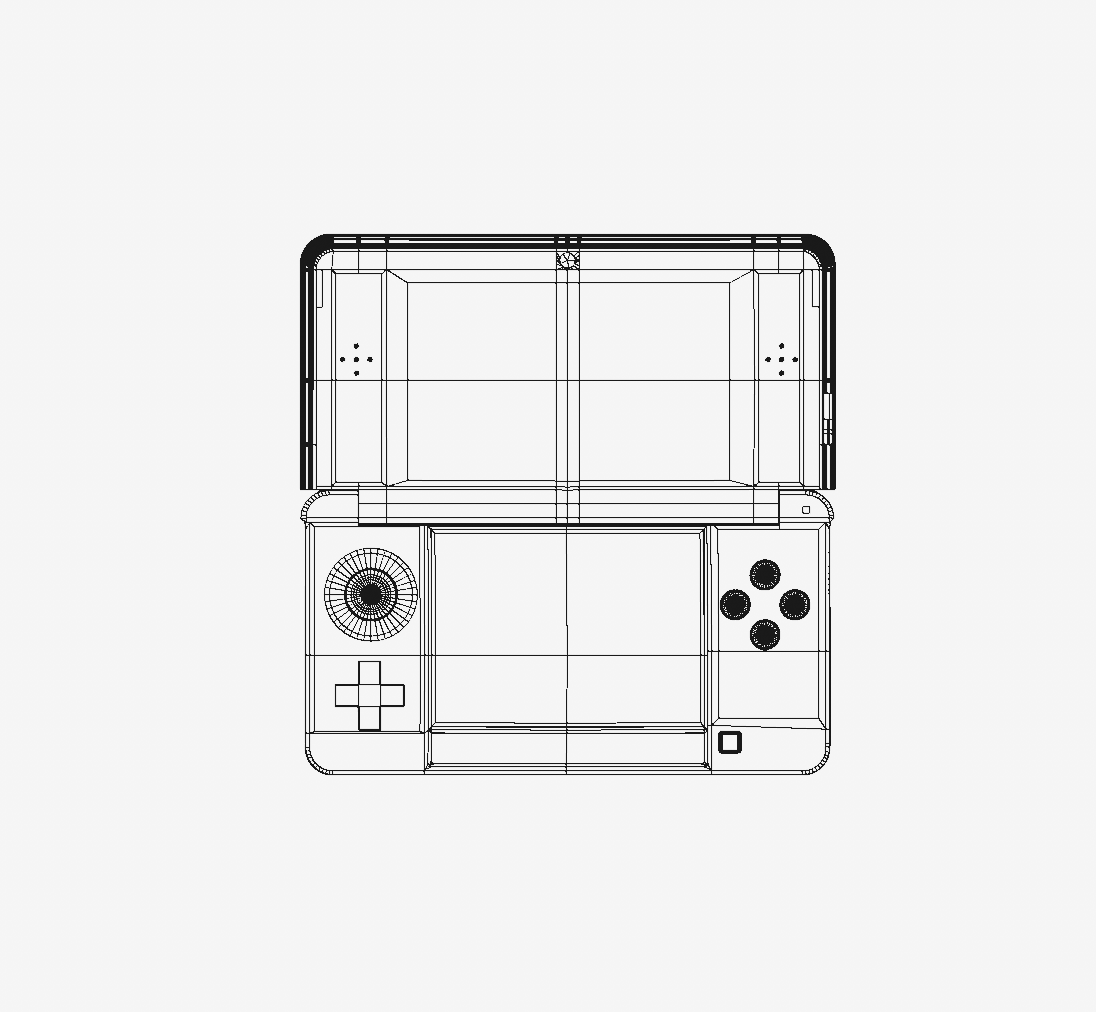
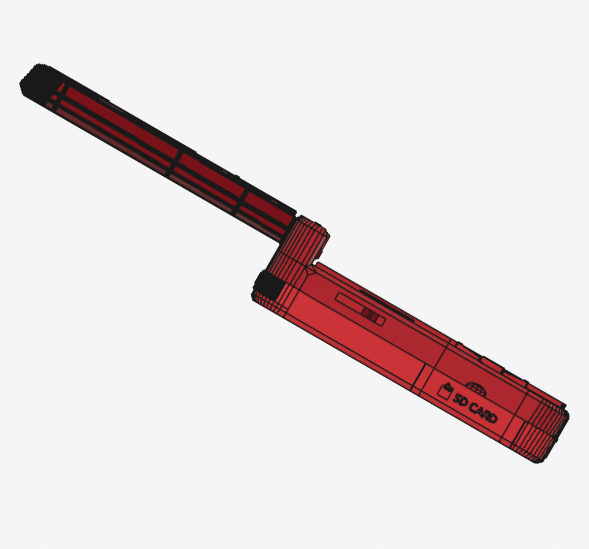
For this model I started by placing reference images into the front, side, and top view of the file to aid in the initial blocking stages during which I focus on the overall shape. I prioritized keeping the objects parametric with non-destructive edits as long as I could, only making the objects editable once the level of detail required precise editing. I also kept the top and bottom sections of the product as two separate objects.
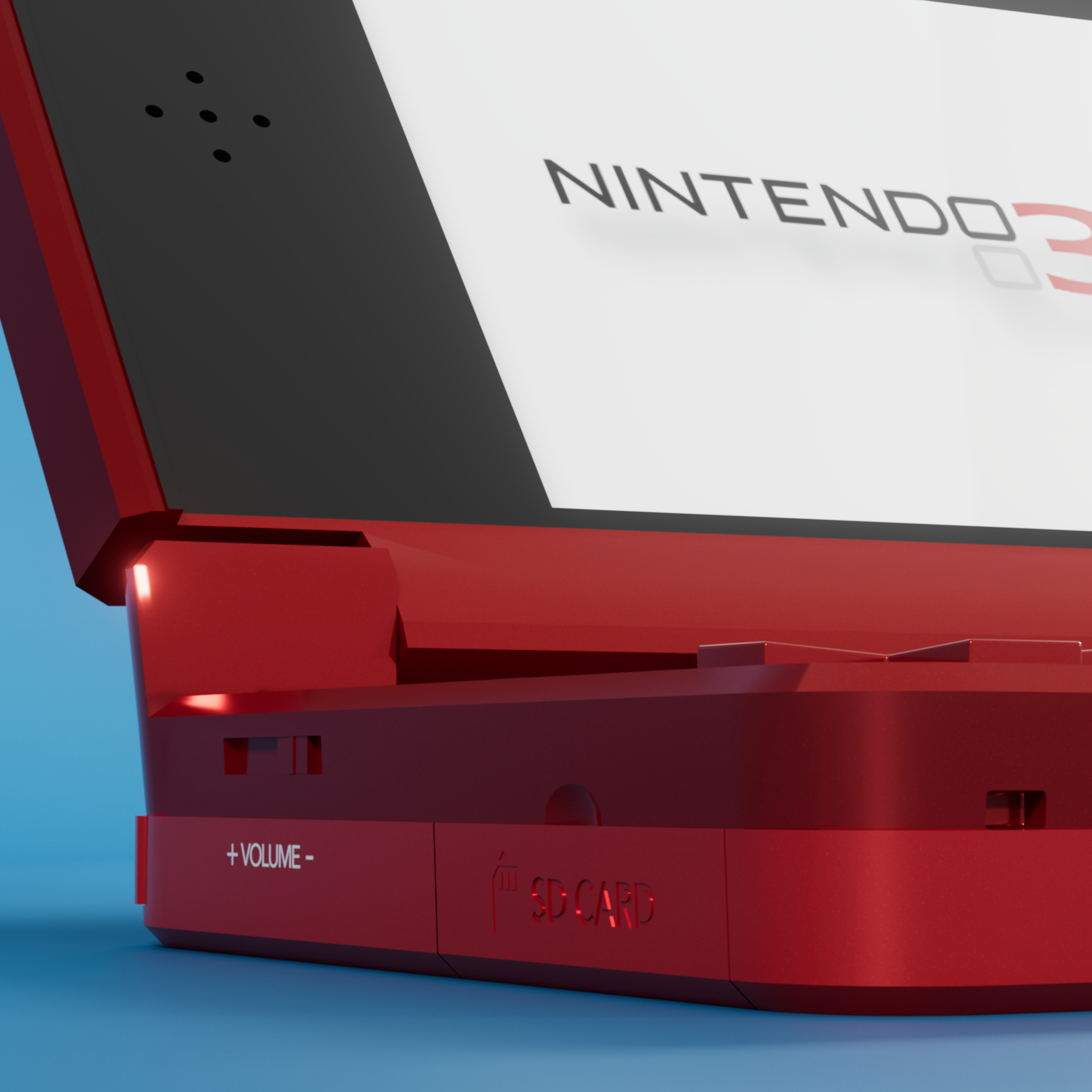
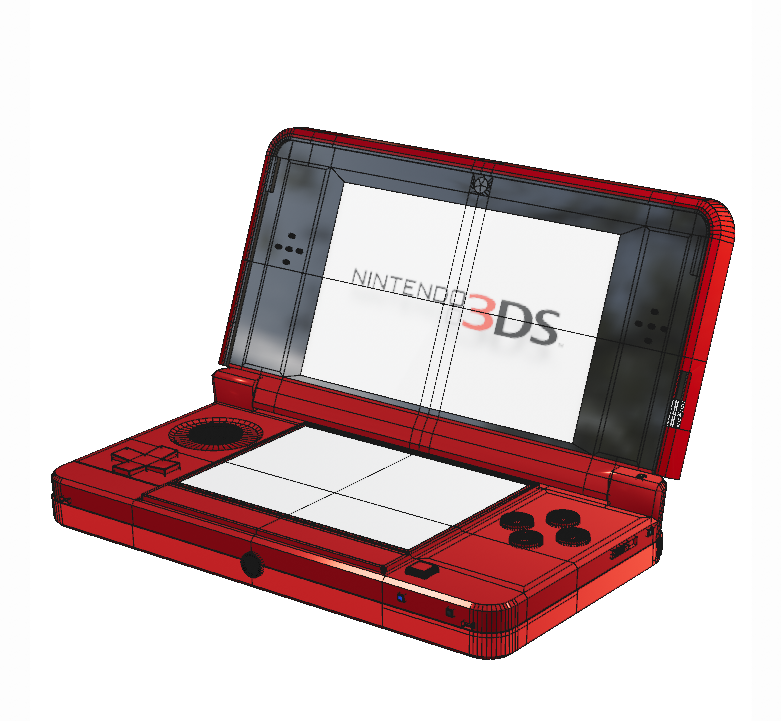
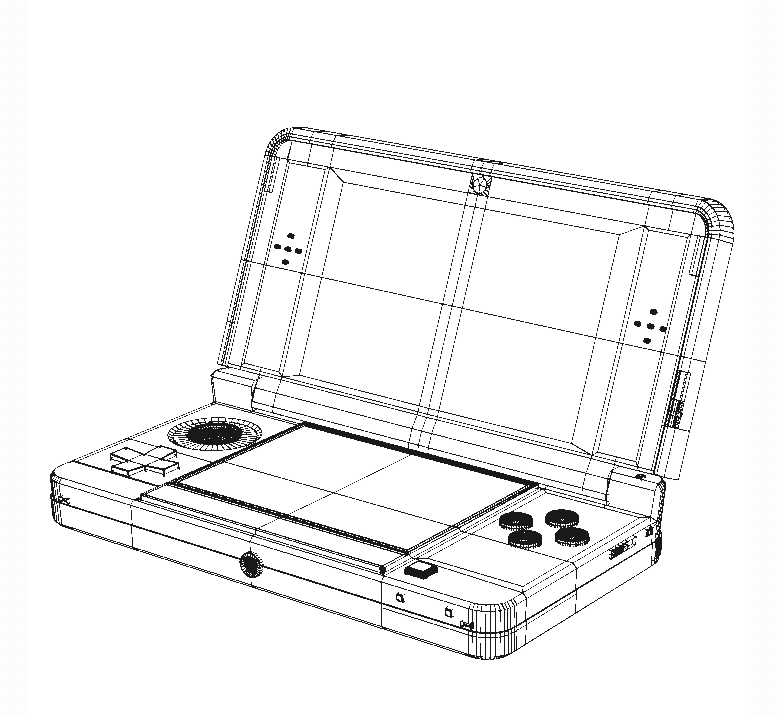
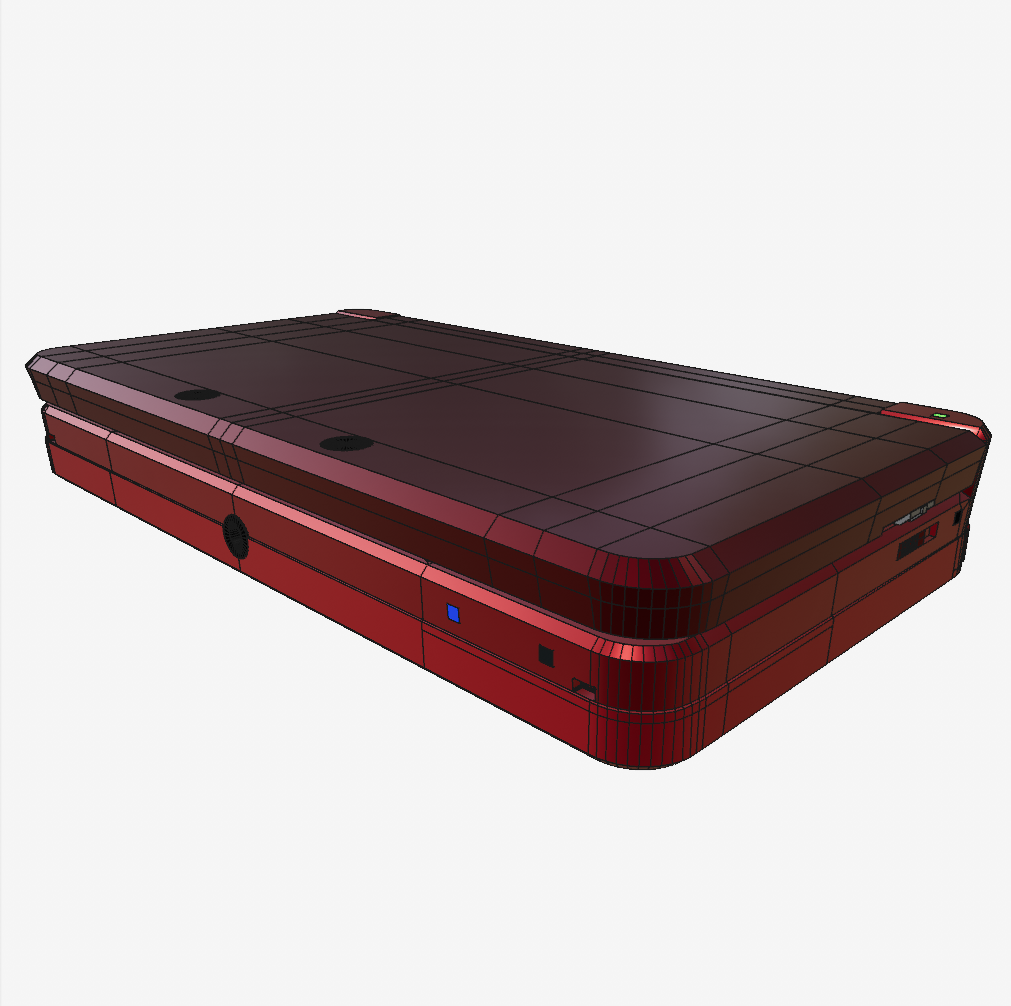
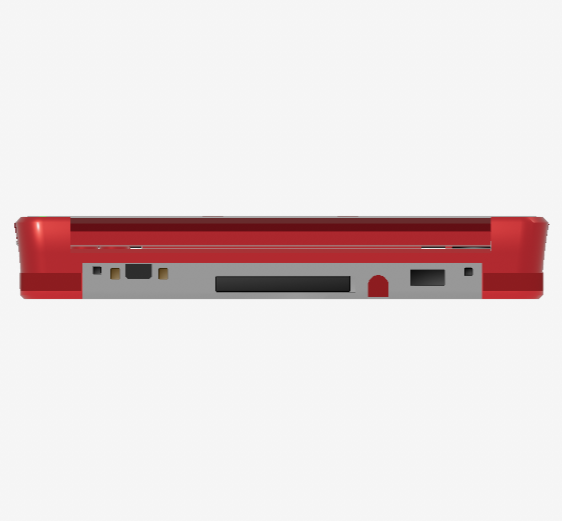
Once the large bevels and overall shape were sufficient I added smaller details through direct edits to the main object’s mesh using loop cuts and extrusions in the topology and Boolean addition and subtractions using simple shapes. All of the buttons, sliders, and accessories are individual parametric objects with a few non-destructive generators and deformers applied when needed. I then duplicated the objects to cut holes in the base model, again using Boolean functions.
Sometimes Boolean functions can alter the topology in unintended ways so after a few cuts I would check over and adjust the edges and faces to maintain organized loops and sections.
-
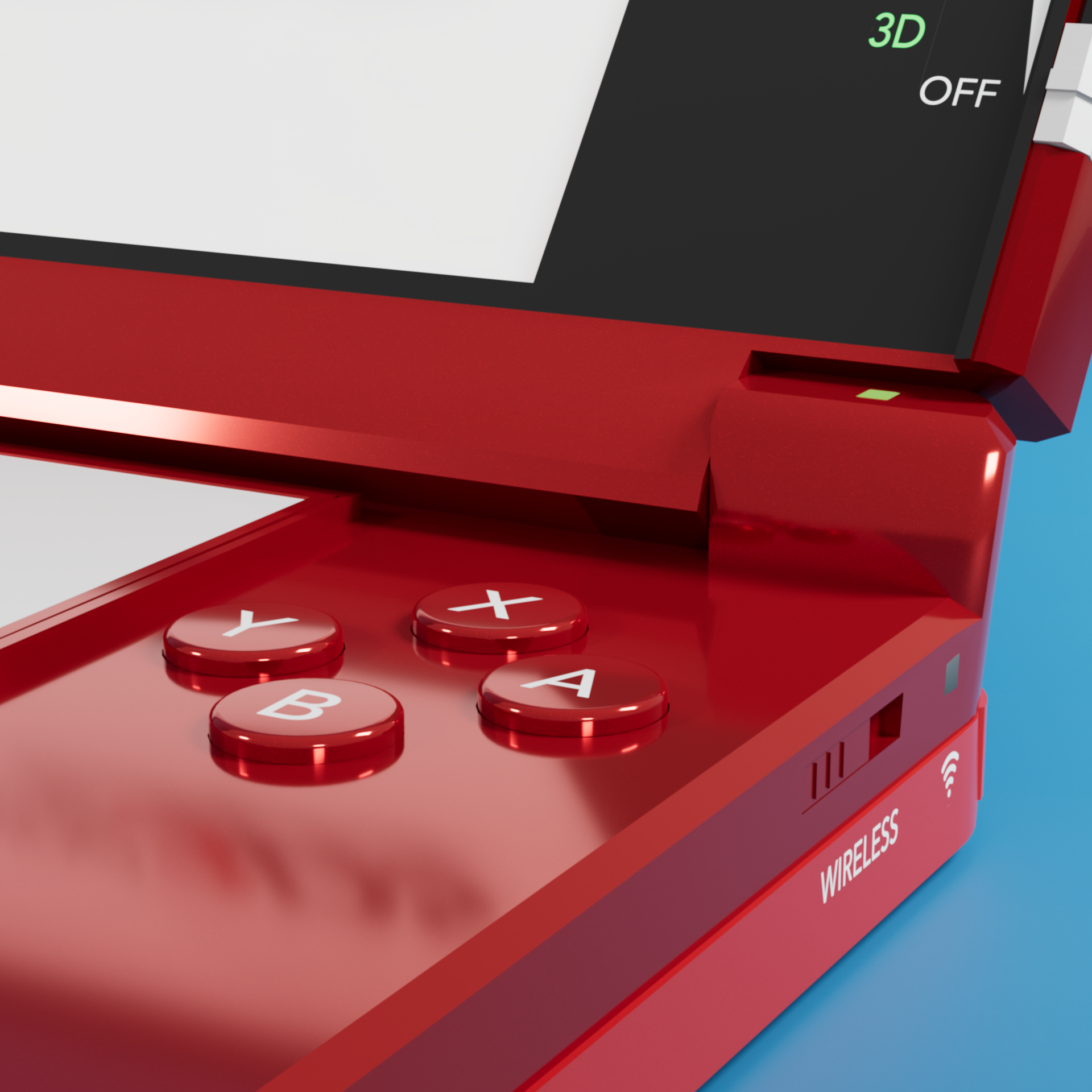
I had three priorities when it came to the textures for this model: the text and icons should be very clear and high definition, the different sections of the body should each get individual material applied to more accuratly represent the physical product, and that the main color of the body include the shimmering flakes that create an interesting ‘glitter’ effect in the paint.
To address the first point I recreated the icons and text in illustrator as vector graphics. Then brought them into photoshop to more easily save the alpha data making the background transparent and the edges ‘crisp’. Then in the material editor I connected the images color and alpha channels to create a texture for each icon and placed them on the corresponding buttons.
For my second priority, there were objects that would need different materials applied, but I did not want to separate these sections so I selected the faces where each material would apply and saved that selection group so that I could apply and edit the materials easily to each group of faces.
To address the last priority, I created a custom material using the visual node editor. I used the ‘flakes’ node and adjusted the density and randomness to match the reference, then used a color ramps to control the color of the flakes and the color of the base paint.